
If you’re reading this, you’ve probably been there. Maybe you were just updating Windows, or perhaps you were trying to enable a feature like .NET Framework 3.5 for an older application. Whatever the reason, that error code is now staring you down, blocking your path. I want to tell you right from the start: take a deep breath. This error is almost always fixable. It can be a little stubborn, I won’t lie, but with some patience and the right guidance, you can conquer it.
This guide is written not for IT professionals, but for you. We’ll use simple language, explain the “why” behind the steps, and walk through this together, one method at a time. Let’s demystify this beast.
What Exactly Is Error 0x800f0915? Let’s Break It Down
Before we start running commands, it’s helpful to understand what we’re dealing with. Think of your Windows operating system as a giant, intricate library. This library doesn’t just have books; it has entire sections dedicated to different functionalities, called “components.” One of the most important librarians in this library is a system called the Component-Based Servicing (CBS).
The CBS is responsible for installing, updating, and repairing these Windows components. Error 0x800f0915 is essentially the CBS throwing its hands up in the air and saying, “I can’t find the source files I need to do my job!”
The “job” it’s trying to do is often one of two things:
-
Installing a Windows Update that requires modifying core components.
-
Enabling or installing the .NET Framework 3.5, a piece of software that many older (and some newer) applications rely on to run.
The error message might say something like “Windows couldn’t complete the requested changes” or “The source files could not be found.” The core problem is a breakdown in communication. Windows is looking for the original installation files in the wrong place, or the files it has locally are corrupted.
Why Does This Happen? The Common Culprits
Over the years, and through helping countless friends and forum users with this issue, I’ve narrowed down the usual suspects. Understanding the “why” makes the fixes we’re about to perform feel less like random magic spells and more like logical solutions.
-
Corrupted Windows Update Cache: Sometimes, the temporary files that Windows Update downloads get jumbled or incomplete. It’s like trying to bake a cake with a recipe where half the pages are missing or smudged with ink.
-
Damaged System Files: The core files of Windows itself can sometimes become corrupted. This is rare, but it can happen due to sudden power loss, faulty hardware, or even buggy software.
-
Misconfigured Windows Update Components: The various services and files that make up the Windows Update system can get out of sync or stuck.
-
Missing Source Path for .NET Framework 3.5: When you try to enable .NET 3.5 through the “Windows Features” dialog, it often tries to download the files from Microsoft’s servers. If there’s a network issue or a policy setting on your PC, it fails. It can also look for the files on your local hard drive in a place where they no longer exist.
Now that we know what we’re fighting, let’s get our tools ready and start fixing it. We’ll start with the simplest, least invasive methods and work our way up. I strongly recommend you follow these steps in order.
Method 1: The Automatic Doctor – Windows Update Troubleshooter
This is always the best place to start. Microsoft includes built-in “troubleshooters” that are designed to automatically find and fix common problems. It’s the equivalent of taking your computer to a clinic for a check-up before trying any major surgery.
How to run it:
-
Click on the Start button and type “troubleshoot settings” and press Enter.
-
Click on Other troubleshooters or Additional troubleshooters (the wording varies by Windows version).
-
Look for Windows Update and click the Run button next to it.
The troubleshooter will now scan your system. It looks for issues with the Windows Update service, checks for corrupted caches, and attempts to reset anything that’s out of place. In my experience, this fixes the problem about 30% of the time. It’s a quick win, so never skip it. If it works, fantastic! If not, don’t worry, we have more tools in our kit.
Method 2: The Master Repair Tool – Using DISM
If the troubleshooter didn’t work, it’s time to bring out the big guns. This is the most crucial step for fixing error 0x800f0915. We’re going to use a tool called DISM (Deployment Image Servicing and Management).
Think of DISM as the head librarian’s master key. While the CBS librarian manages the books, DISM is the one who can repair the library’s central catalog and even restock the shelves with fresh copies of the books from a trusted source.
The command we are about to run tells DISM to check the health of your Windows system image (the core “blueprint” of your OS) and repair it using files from Microsoft’s online servers.
Step-by-Step Guide:
-
Open Command Prompt as Administrator. This is very important. DISM needs high-level permissions to do its job.
-
Click the Start button.
-
Type “cmd”.
-
Right-click on Command Prompt in the search results and select Run as administrator.
-
-
A black window with a blinking cursor will appear. Carefully type or copy and paste the following command and press Enter:
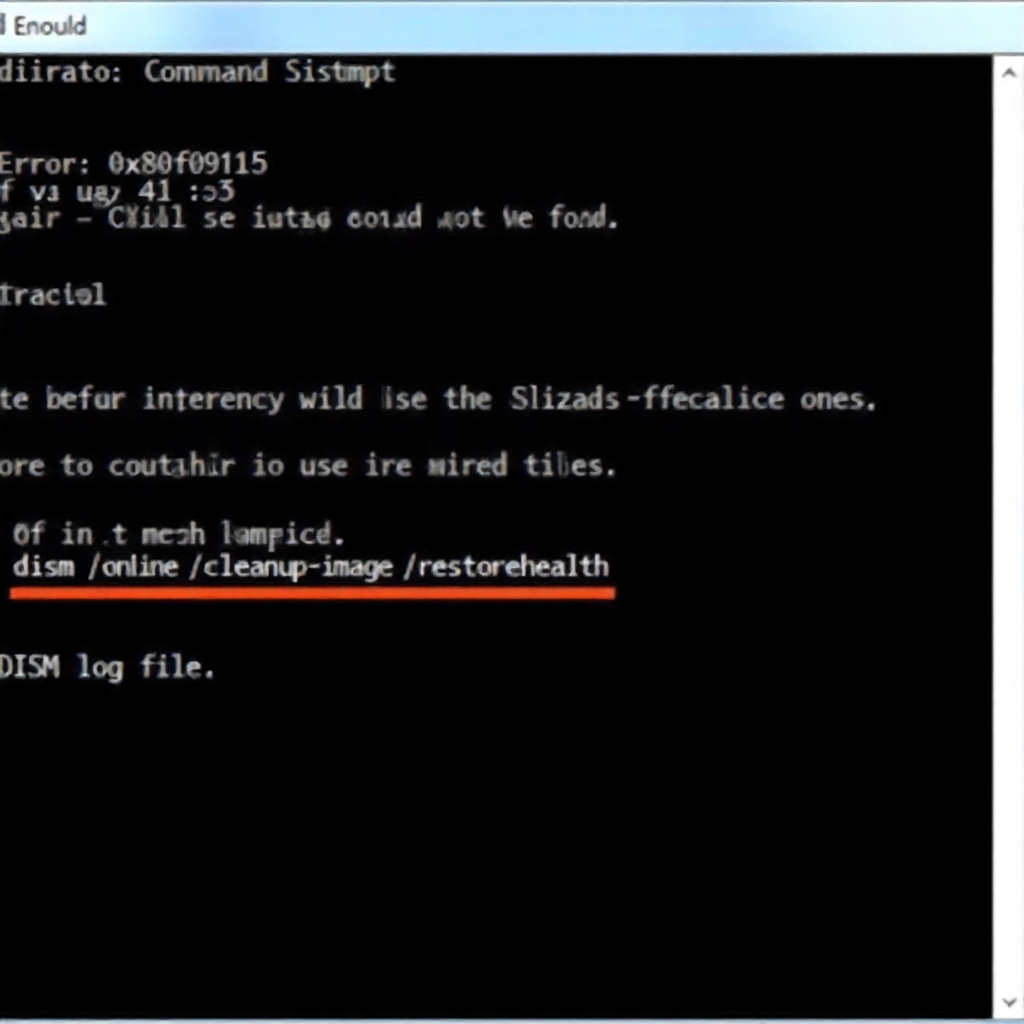
DISM /Online /Cleanup-Image /RestoreHealth
-
Now, be patient. This process can take a while—anywhere from 5 to 30 minutes. The progress might seem stuck at 20% for a long time, but that’s normal. Do not close the window or turn off your PC.
What is it doing? DISM is scanning every component of your Windows image. If it finds a corrupted file, it contacts Microsoft’s servers, downloads a clean, certified version of that file, and replaces the bad one. I’ve personally seen this command resolve the 0x800f0915 error more times than I can count. It directly addresses the “source files are missing or corrupted” heart of the problem.
Once it finishes (it will say “The operation completed successfully”), you must restart your computer. Then, try the Windows Update or the .NET Framework installation that was failing before. If it works, you’re done! If you’re still encountering the error, proceed to the next method.
Method 3: The Local File Checker – System File Checker (SFC)
DISM fixes the central blueprint. Now we use a tool that works on the actual, deployed files on your system: the System File Checker (SFC). If DISM is the head librarian, SFC is the floor manager who walks the aisles, checking every single book on the shelf for damage.
SFC uses the information from the blueprint that DISM just repaired to check and fix the individual files on your PC.
How to run it:
-
Open Command Prompt as Administrator again, just like we did for DISM.
-
Type the following command and press Enter:
sfc /scannow
-
Again, this will take some time. Let it run to completion.
The sfc /scannow command will scan all protected system files and replace any that are corrupted with the correct version from the cache that DISM just refreshed. It’s a powerful one-two punch: DISM ensures the cache is healthy, and SFC uses that healthy cache to fix the live system.
After SFC finishes and you restart, attempt your original task again. The combination of Methods 2 and 3 solves the vast majority of 0x800f0915 errors.
Method 4: The Manual Workaround – Installing .NET Framework 3.5 via Installation Media
If you are specifically getting this error while trying to enable .NET Framework 3.5, and the methods above didn’t work, there is a very effective manual workaround. This method tells Windows exactly where to find the source files, bypassing its faulty automatic search.
You will need a Windows installation media (a USB flash drive or DVD) that matches the version of Windows you are using (e.g., Windows 11 22H2, Windows 10 21H2). If you don’t have one, you can create it using Microsoft’s “Media Creation Tool” from their website.
Once you have the USB drive inserted or the DVD mounted, follow these steps:
-
Open Command Prompt as Administrator.
-
We will use DISM again, but this time we will point it directly to the
sources\sxsfolder on your installation media. ReplaceD:with the drive letter of your USB or DVD drive.DISM /Online /Enable-Feature /FeatureName:NetFx3 /All /LimitAccess /Source:D:\sources\sxs
This command is very specific. It says: “Enable the .NET Framework 3.5 feature. Don’t look online for the files (/LimitAccess). Instead, get them directly from the D:\sources\sxs folder.” This almost always works like a charm, as long as the installation media is correct.
Method 5: The Nuclear Option – Resetting Windows Update Components
If all else has failed, we can try a full reset of the entire Windows Update machinery. This is a more involved process, but it can clear out deep-seated corruption. We will be stopping services, renaming cache folders, and then restarting everything.
It’s best to find a detailed, step-by-step guide for this online from a trusted source like Microsoft Support, as the process involves several commands. The general steps are:
-
Open Command Prompt as Admin.
-
Stop the Windows Update service and the Background Intelligent Transfer Service (BITS).
-
Rename the SoftwareDistribution and Catroot2 folders (this clears the cache).
-
Restart the services we stopped.
This gives Windows Update a completely clean slate to work from.
Conclusion: Patience and Persistence Pay Off
Dealing with error 0x800f0915 can feel like a test of will. It’s a stubborn error that doesn’t always have a single, simple cause. But as we’ve seen, it’s not an insurmountable one. The key is a systematic approach.
Start with the easy, automated fixes like the Troubleshooter. Then, move to the powerful one-two punch of DISM and SFC, which repair the core of the Windows system itself. For .NET Framework issues, the manual installation method is a reliable escape hatch. And as a last resort, a full Windows Update reset can sweep away any lingering issues.
I hope this guide has not only helped you fix your problem but has also made you feel a little more empowered and less intimidated by your computer. These errors are puzzles, not dead-ends. Now, go enjoy that old software or finally get your system up to date!
Frequently Asked Questions (FAQ)
Q1: Is error 0x800f0915 harmful to my computer or data?
A: No, the error itself is not harmful. It’s a failure to install or update a component. Your existing files and data are safe. The only “damage” is the inconvenience of not being able to complete the update or software installation you wanted.
Q2: Can I prevent this error from happening again?
A: While you can’t guarantee it will never happen, you can reduce the risk. Avoid turning off your PC during updates, use a stable power source (a UPS is great for desktops), and run the DISM /Online /Cleanup-Image /RestoreHealth command every few months as preventative maintenance to keep your Windows image healthy.
Q3: I’m still stuck! What should I do?
A: If you’ve tried every method here and are still facing the error, the issue could be more complex. The next step would be to look at the CBS log files for detailed clues. You can also consider using the “Reset this PC” feature in Windows (which keeps your files) as a last resort, as this reinstalls Windows while preserving your data.
Q4: Does this error only happen on Windows 10, or also on Windows 11?
A: It can happen on both Windows 10 and Windows 11, as the underlying Component-Based Servicing system is similar in both operating systems. The fixes described in this guide are effective for both versions.
